Turn a photo into video with AI
Upload a photo — the AI brings it to life and turns it into a short video.
What comes alive in the photo
The movement is chosen from the frame itself — nothing to pick separately.
Gentle movement
The frame starts to breathe: fabric, hair, water, leaves.
A living face
A gaze, a blink and the smallest movement of the face.
A camera move
A slow push in or an orbit instead of a still frame.
A finished video
What comes back is a clip you can post straight away.
Old photographs
An archive picture starts moving too.
No editing
No timeline and no keyframes — one button.






Which photos this works for
It pays off where there is something in the frame that can move.
Portraits
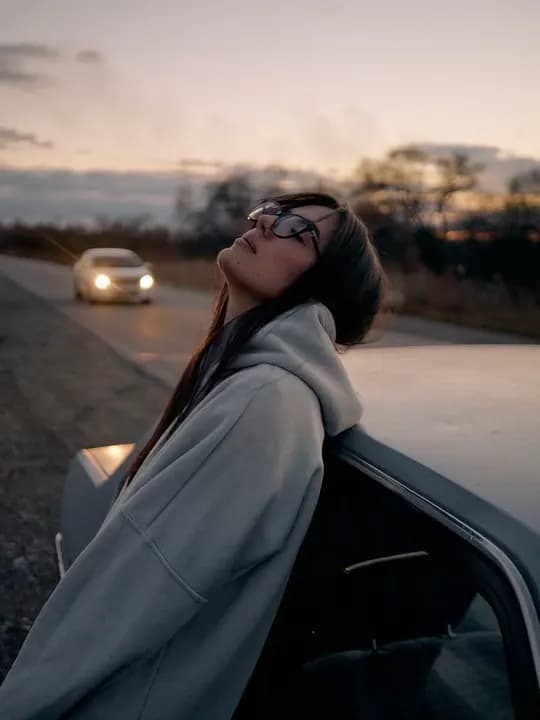
A close shot, where movement of the face shows most.
Photos for social
Video gets watched in the feed more readily than a still.
Family and archive
An old photograph you would like to see alive.
Pet photos
Frames where the movement suggests itself.
Product photos
A short clip instead of a static listing image.
Travel photos
A landscape where water and clouds can move.




How to turn a photo into a video
Three steps, from your photo to a finished clip.
Upload a photo
One shot you want to animate, from your phone or computer.
Describe the movement
Optional: you can simply press the button and write nothing.
Get your video
Download the clip. Your original photo stays untouched.
Try animating a photo online
Upload a photo — the AI adds movement and returns it as a short video you can post right away.
Questions about animating photos
Still not sure? Write to support — we reply the same day.
Upload your photo in the tool window and press the button. The AI decides for itself what in the frame can move: hair and fabric in the wind, water, leaves, a small change of expression and the eyes. If you already picture a particular movement, you can describe it — there is a field for that, but it is optional. It all happens in the browser: no editor, no plugins, no keyframes.
It is the same action named from the other end: one photograph goes in, a short clip comes out. There is no slideshow to assemble from several pictures, no music to pick and no timeline to cut — the movement appears inside the frame itself. The finished video can be downloaded and posted as it is.
A slideshow is several photographs shown one after another with transitions; the pictures themselves stay still. Here it is the other way round: there is one photo, and it is the photo that moves — the person, the fabric, the water, the background, the camera. That is why the clip looks filmed rather than assembled.
No. The tool runs from a single button, and the frame will come to life without a word from you. The note field is for people who already have the movement in mind: “a slow push in”, “a turn of the head”, “wind in the hair”. Write it in plain language, not as instructions for a model.
The point of animating is to keep the likeness: this is your photograph that started moving, not a new person. The features stay where they are. On small and murky photos a moving face can come out slightly different, simply because there is little readable detail in the file and some of it has to be built.
Frames where the subject is clearly visible: a face in close-up, a whole figure, a background you can read. Portraits, landscapes with water and sky, and animal photos all work well. It is harder where the person is badly blurred, hidden behind others or shot from far away: there is almost nothing to move, and the result would be invented rather than animated.
More from Photopin
A photo you already have can become more than one thing in Photopin.