Remove things from a photo with AI
Say what should go — the AI takes it out and leaves everything else alone.

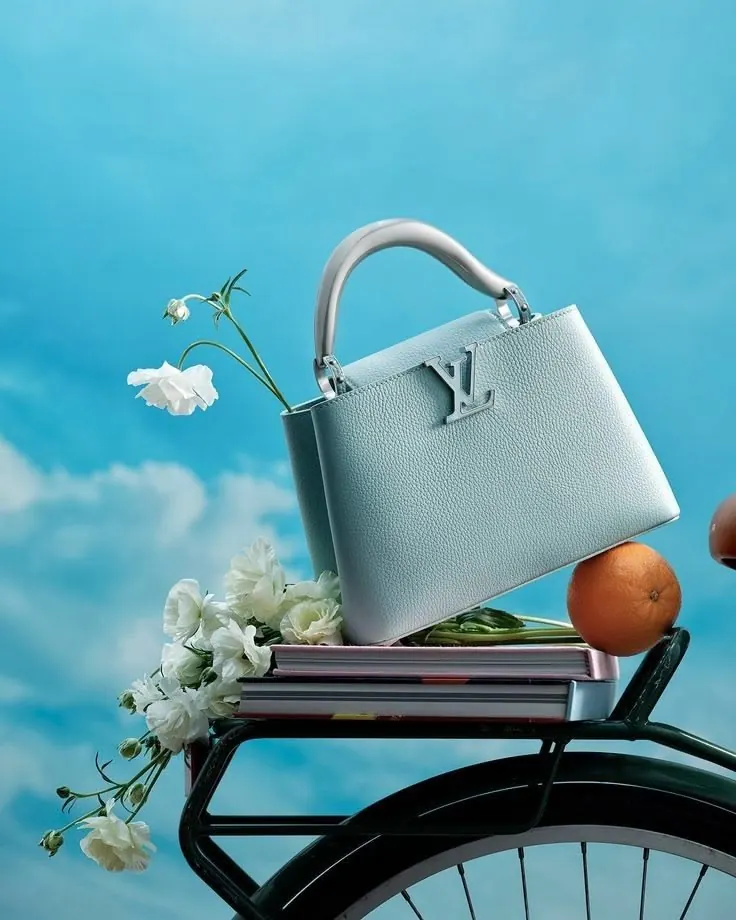
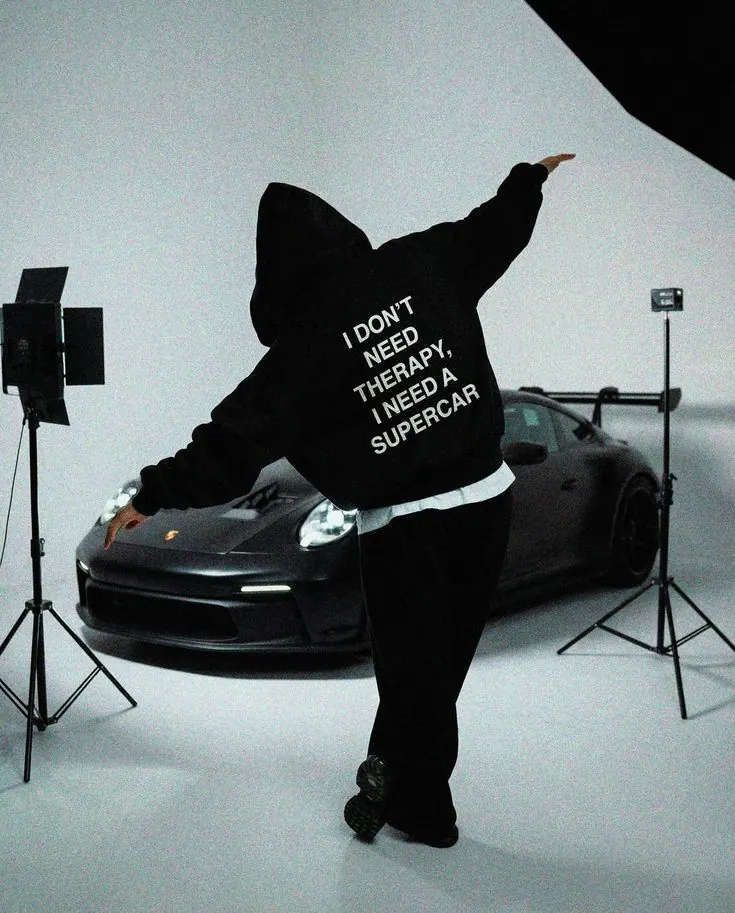


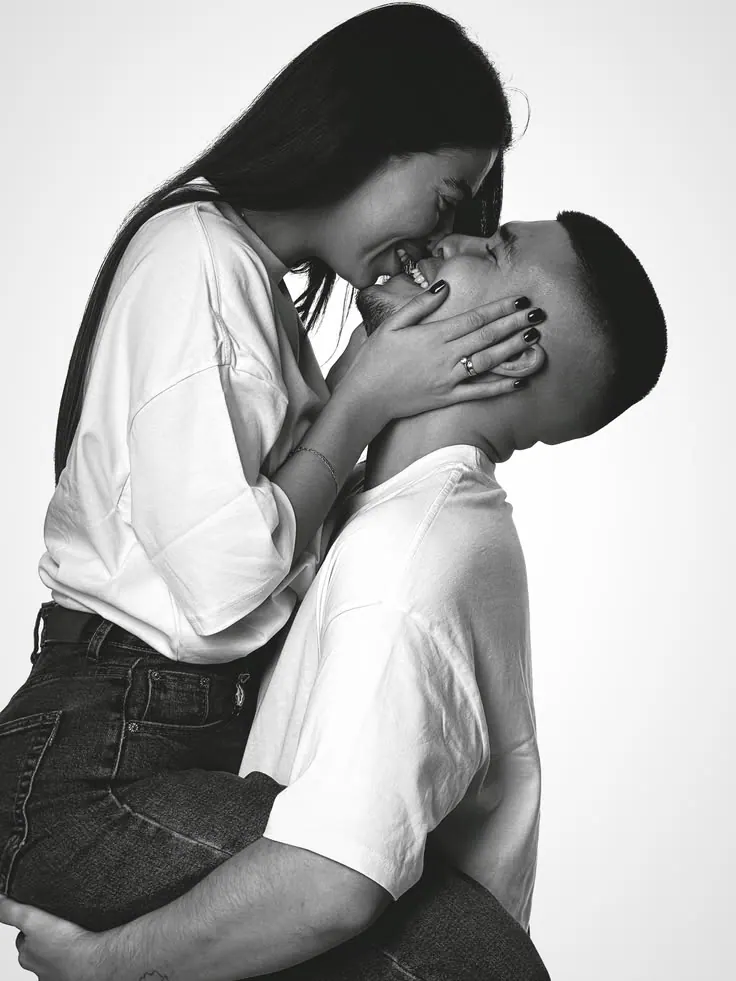
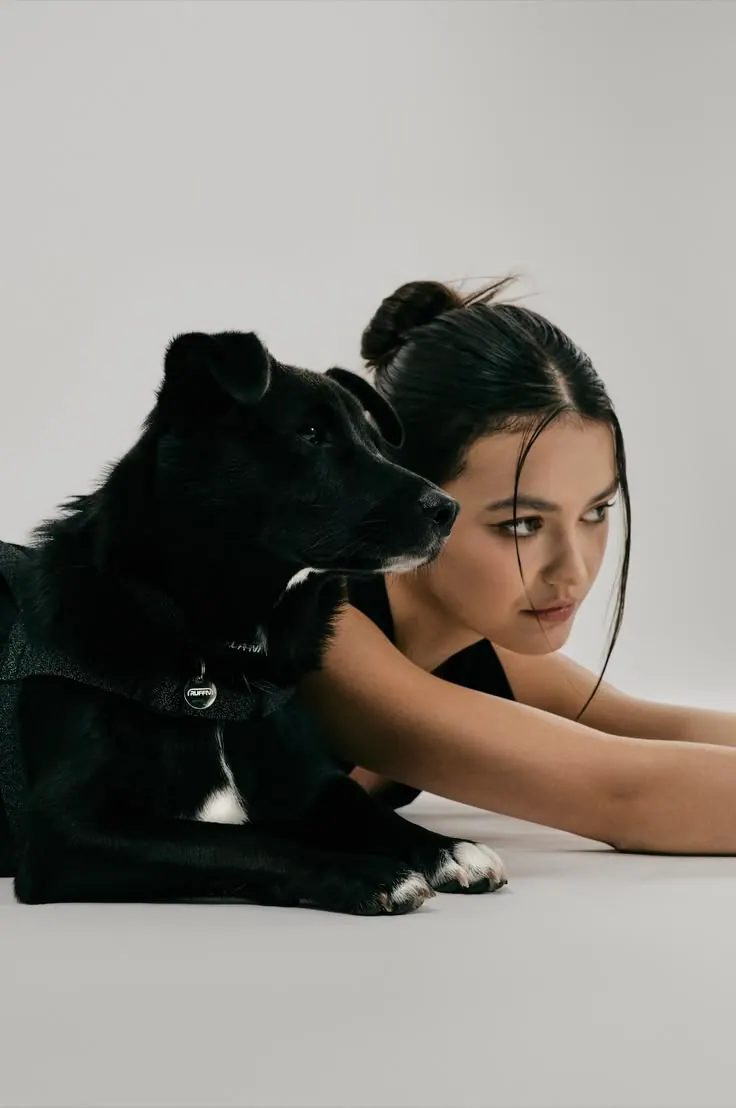

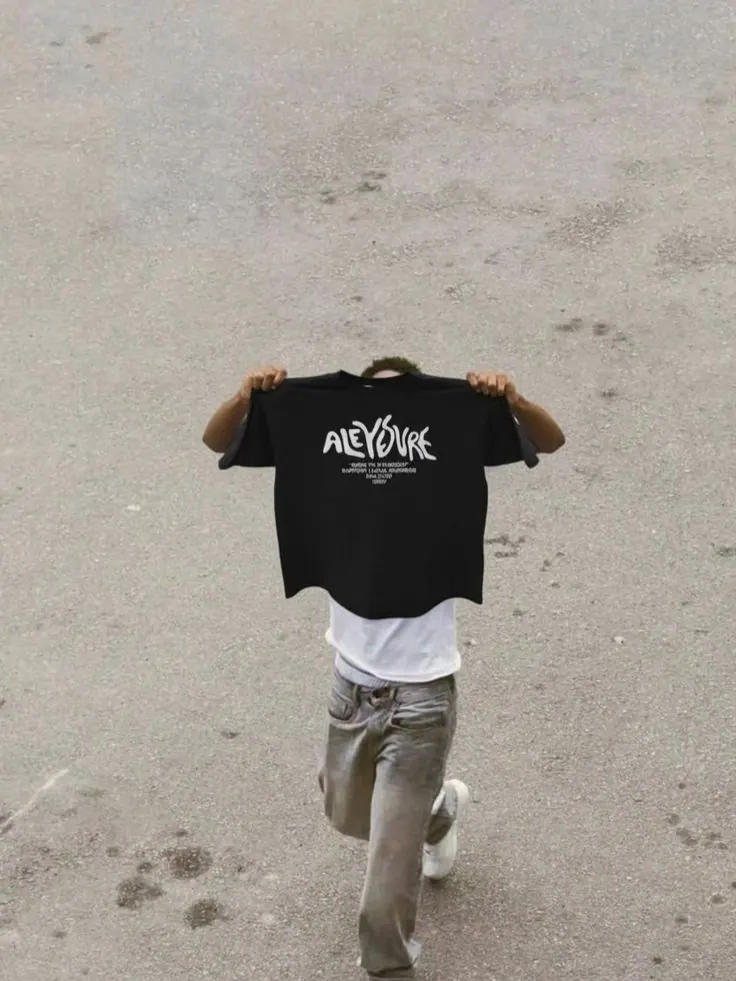

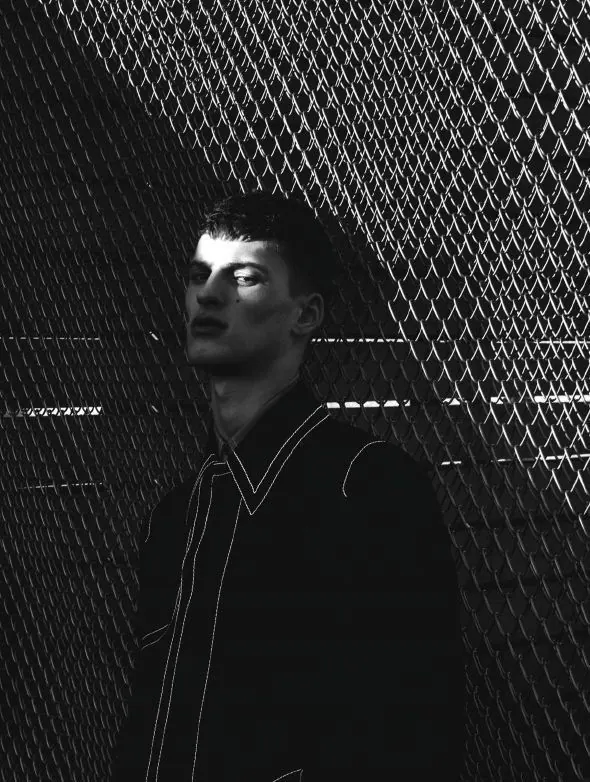
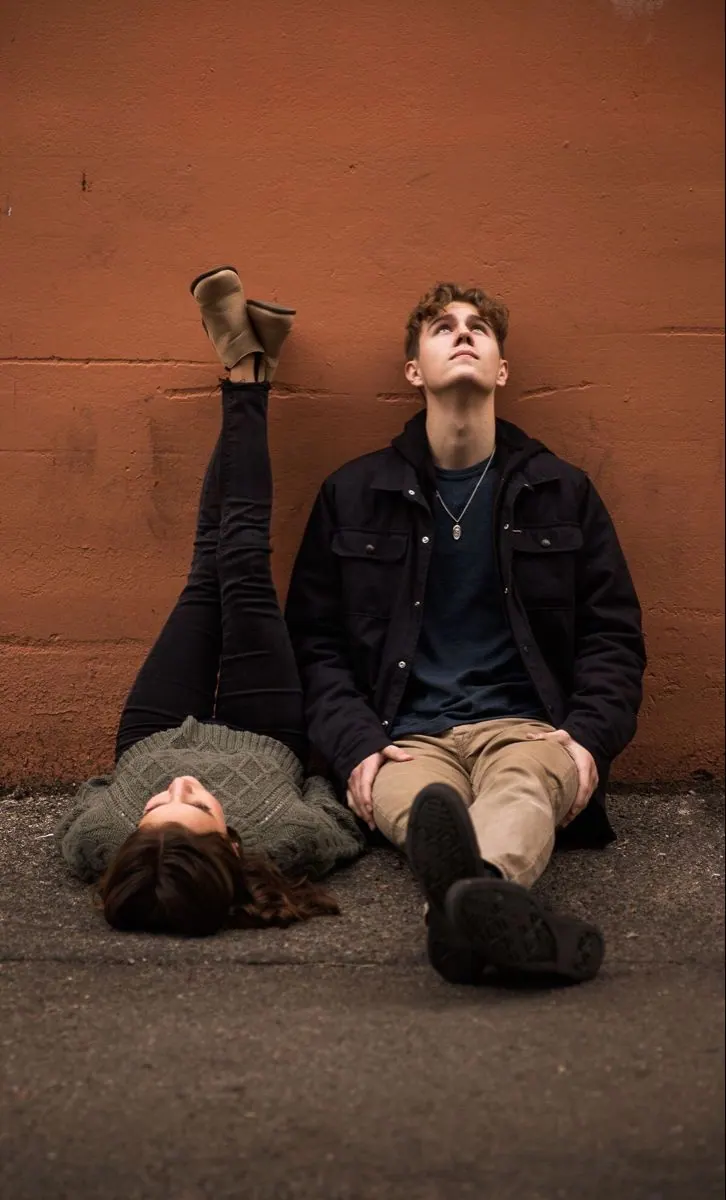

What can be taken out of the frame
Describe what is in the way — the rest of the photo stays as it was.
People in the way
Passers-by and strangers who wandered into the background.
Stray objects
A bag, a glass, a cable, a pole — anything that got in.
Signs and logos
A shop sign, a price tag, a watermark or a caption.
Everyday clutter
Whatever was left on the table and the floor before the shot.
A clean background
The background stays the same — just without the clutter.
Only what you asked
Everything else in the frame looks the way it did.




Which photos this works for
It pays off where the shot came out well and something else got into it.
Portraits
A good frame with strangers standing behind you.
Photos for social
Shots for the feed spoiled by one small thing.
Travel photos
The crowd at the landmark and other people’s backs.
Product photos
A listing shot with something stray beside it.
Interiors
A room before a viewing: cables, boxes, clutter.
Profile pictures
An avatar where the background is the problem, not the face.



How to remove something from a photo
Three steps, from your photo to a clean frame.
Upload a photo
One shot with something in it you want gone.
Say what should go
In your own words: “the man on the right”, “the cable”, “the sign”.
Get a clean frame
Download the result. Your original file stays untouched.
Try removing something from a photo
Upload a photo and say what is in the way — the AI takes it out and leaves the frame the way it was meant to be.
Questions about cleaning up a frame
Still not sure? Write to support — we reply the same day.
Upload your photo in the tool window and describe, in ordinary words, what is in the way: “the man on the right”, “the cable above the roof”, “the writing on the wall”. The AI removes what you named and rebuilds what was behind it from the surroundings — the wall, the sky, the grass. It all happens in the browser: no photo editor to install, no brushing over an area and no layers.
The same way as anything else: describe who exactly should go — “the man in the blue jacket on the left”, “the people in the background”. The clearer the description, the better the result: if there are several people in the frame, say where the one you mean is standing. Someone who partly covers the main subject is harder, because what is behind them has to be drawn from nothing.
The tool does not put in a different background — it removes what is in the way rather than swapping the surroundings. What it can do is clear the background of anything you do not want: people, cables, signs, litter. The background itself stays the same, only clean. If you need a genuinely different setting — another street, a studio, an interior — that is a shoot from a catalogue template, not a clean-up.
One or two sentences in plain language, with no jargon and no prompt: “remove the litter in the foreground”, “remove the sign above the door”. It helps to say where it is — on the right, on the left, in the background, near the feet — because there may be several similar things in the frame. The field is required: without it the tool has nothing to look for.
The whole point is that it should not: what you named is removed and everything else should look the way it did — the same faces, colours, light and composition. Strictly speaking the result is a new image rather than a patch over the old one, so small differences in fine detail are possible. Your original file does not go anywhere: the processed frame arrives as a separate image.
Ones where the unwanted thing is fully visible and does not blend into the subject: a person behind you, an object on a table, a cable against the sky. It is harder when what you want gone covers a face or takes up half the frame — too much behind it is unknown and has to be invented. The sharper the photo and the smaller the intruder, the cleaner the result.
More from Photopin
A photo you already have can become more than one thing in Photopin.